Return to your application and respond to an offer
Check your progress, update permitted contact details and respond to the correct week and role.
Who: The applicant named in the application.
Before you start: Have the email and six-digit applicant code from your application message, or the private offer link for the response task.
Open your application
- Choose Applicant portal.
- Enter the correct email and applicant code. If people share an email, use the code for your application.
- Check the displayed name, season and weeks. Choose Documents and requirements for required actions, review progress and optional uploads.
- To correct contact details, edit Contact Information, save and check the result.
- Use the portal message workflow for questions that need the staffing coordinator.
Codes expire after seven days. Use Need A New Code? when necessary. Delivery depends on the camp's configured messaging; contact the staffing team if the message does not arrive.
If you will be under 18 when any requested week starts, keep the guardian name, phone and email complete when saving contact changes. A correction becomes a later saved answer; it does not replace the original submitted answer.
Respond to an offer
- Near the top of your application, find Your placements and offers. Check the week, dates, role, saved response and deadline.
- Choose View and respond beside the correct offer. If you have already accepted, the action is Review offer. You can also use the private response link in the offer message.
- Read the week and role again. Choose Accept this placement, Request a change or Decline this placement, add a note if needed, then choose Record Response.
- Check the result and choose Return to your application. Your saved response should appear beside the correct week.
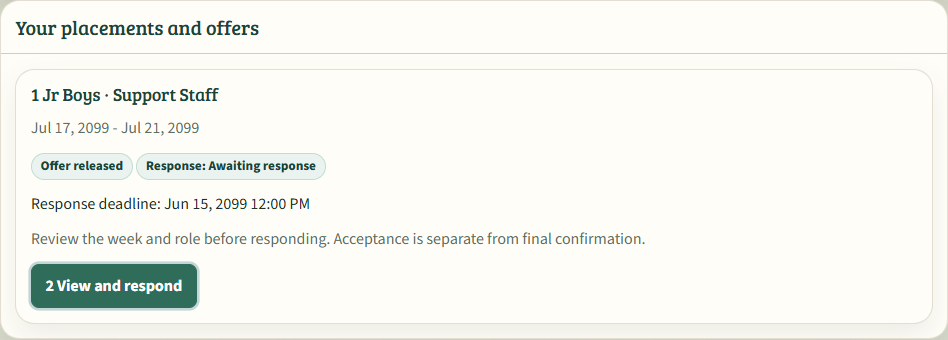
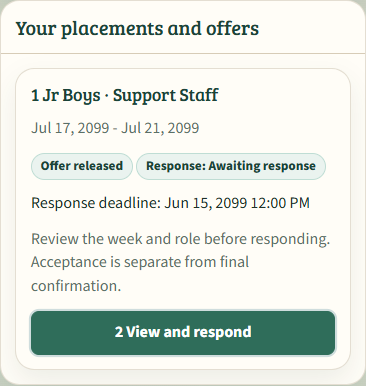
Steps 1-2: check the details, then open the action beside the correct offer. The same card on a phone:
If there is no response action: Read the explanation beside that offer. Expired, changed or unavailable links need coordinator help; opening the portal does not issue a replacement or extend the deadline. Confirmed placements and cancelled offers are read-only here. Internal plans do not appear until released.
If an offer changes while the page is open: Return to the current card, check its details and open its action again. Do not reuse an old link.
Expected result: Your response appears on the correct offer. Acceptance is not final confirmation; complete outstanding requirements and wait for the separate coordinator decision.
If the portal link returns to code entry: Enter the applicant code again. Keep codes and response links private.
Next: Complete documents and AP, then check Ready for Camp.
Progress labels describe workflow: Evaluation requests can include prepared drafts, and Final confirmation is the coordinator decision. If you or an evaluator are missing an expected email, contact the staffing team; a completed step does not prove delivery.